XDA made the case this week that a used business PC beats a starter NAS as a first home lab. That’s the right advice. A cheap Dell Vostro or HP EliteDesk gives you a fanned CPU, an m.2 slot, and room for a second drive, and it costs less than the equivalent Synology two-bay. Once you’ve got the box, the question is what to install. These are the best apps for a home lab in 2026 that we actually run on a modest tower, and they work identically on a mini-PC, a Raspberry Pi 5, or a repurposed laptop.
We tested each app on a mix of a used i5-8500 Dell tower with 16 GB RAM, an N100 mini-PC, and a Raspberry Pi 5. Each pick is judged on how easy it is to install, how much RAM it eats, whether it plays well with the others, and how quickly you can get to something useful.
What to look for in a home lab app
- Runs on cheap hardware. No dedicated GPU, no ECC RAM required.
- Container-first. Ships as a Docker image so you’re not fighting distro packaging.
- Web UI. So you can manage it from a laptop, not the box itself.
- Backups you can actually restore. Configs export cleanly, not locked in a proprietary format.
- Community. A Discord or forum where common problems have Google-able answers.
- Doesn’t need the internet. Home lab apps that break when your ISP hiccups aren’t home lab apps.
Quick comparison
| App | Best for | Platforms | Free plan | Paid | Rating |
|---|---|---|---|---|---|
| Proxmox VE | Type-1 hypervisor for the whole lab | Linux | Fully free | Subscription from ~$120/yr | 4.9 |
| Portainer | Managing Docker containers | Windows, macOS, Linux | Fully free CE | Business $10/mo | 4.8 |
| Cockpit | Web UI for a Linux server | Linux | Fully free | None | 4.6 |
| Home Assistant | Central smart-home controller | Windows, macOS, Linux | Fully free | Nabu Casa $6.50/mo | 4.9 |
| Nginx Proxy Manager | Reverse proxy with a GUI | Windows, macOS, Linux | Fully free | None | 4.7 |
| Uptime Kuma | Self-hosted service monitoring | Windows, macOS, Linux | Fully free | None | 4.9 |
| Immich | Self-hosted Google Photos | Windows, macOS, Linux | Fully free | None | 4.8 |
| Homepage | Dashboard for all your services | Windows, macOS, Linux | Fully free | None | 4.7 |
The apps
1. Proxmox VE — Best for a type-1 hypervisor for the whole lab
Proxmox VE is a Debian-based hypervisor with a web UI that hosts KVM VMs and LXC containers on the same box. It’s the standard first install on a home lab because you can run OpenMediaVault as a VM for storage, Docker in one LXC, and Home Assistant OS in another.
Where it falls short: Runs on the bare metal. No macOS or Windows install path (you’d run those as guests).
Pricing:
- Free: Fully free with a nag banner about enterprise repos.
- Paid: Community subscription starts around $120/yr per socket if you want the enterprise repo.
Platforms: Linux (installs as its own OS).
Download: proxmox.com
Bottom line: The foundation. Install Proxmox first, then treat everything below as a VM or LXC on top.
2. Portainer — Best for managing Docker containers
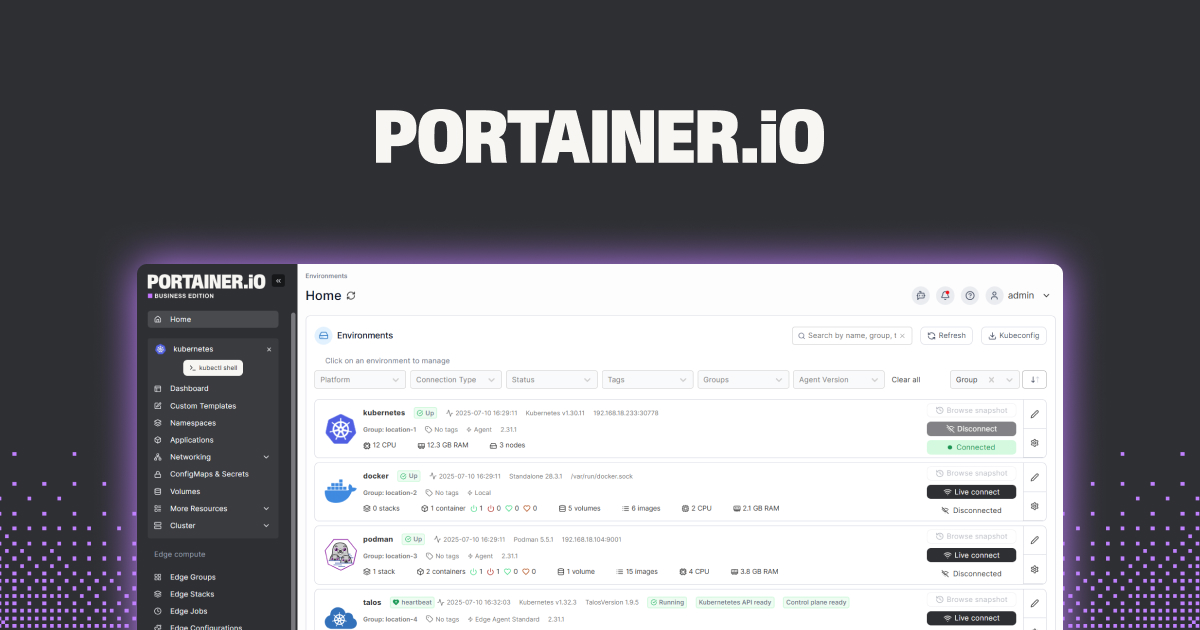
Portainer wraps Docker (or Kubernetes) in a web UI. Deploy a stack from a Compose file, edit environment variables, view logs, exec into a container — all without SSH.
Where it falls short: The Business tier locks a few features (registry integrations, edge computing). Community Edition is what most home labs use.
Pricing:
- Free: Community Edition, fully free.
- Paid: Business Edition from $10/mo for 3 nodes.
Platforms: Windows, macOS, Linux (runs as a Docker container).
Download: portainer.io
Bottom line: Every home lab that touches Docker needs this. Just install it.
3. Cockpit — Best web UI for a bare-metal Linux server
Cockpit is Red Hat’s built-in Linux server UI. Storage, networking, users, logs, VMs, and a terminal in your browser. On Ubuntu Server or Debian, it takes one apt install to add.
Where it falls short: Not container-native. If your whole lab is Docker, Portainer is a better daily driver.
Pricing:
- Free: Fully free.
- Paid: None.
Platforms: Linux.
Download: cockpit-project.org
Bottom line: Install on any bare-metal box that isn’t running Proxmox. It saves you from most SSH sessions.
4. Home Assistant — Best central smart-home controller
Home Assistant is the app around which most home labs slowly organize themselves. It talks to Zigbee, Z-Wave, Matter, Thread, MQTT, and roughly 3,000 integrations. Run it as an LXC on Proxmox or as Home Assistant OS in a VM.
Where it falls short: The first month is a learning curve. YAML is still around, though the UI has largely eaten it.
Pricing:
- Free: Fully free, open source.
- Paid: Nabu Casa cloud $6.50/mo for remote access and voice.
Platforms: Windows, macOS, Linux (runs everywhere; HAOS is a dedicated distro).
Download: home-assistant.io
Bottom line: The single most useful home lab app if you have any smart devices at all.
5. Nginx Proxy Manager — Best reverse proxy with a GUI
Nginx Proxy Manager wraps Nginx and Let’s Encrypt in a web UI. Add a hostname, point at an upstream container, click issue certificate. No hand-written server blocks.
Where it falls short: Doesn’t handle complex routing rules (canary, header manipulation) as gracefully as raw Nginx or Caddy configs. Auth is basic.
Pricing:
- Free: Fully free, open source.
- Paid: None.
Platforms: Windows, macOS, Linux (Docker).
Download: nginxproxymanager.com
Bottom line: The right pick for a home lab that outgrew Docker port mappings and wants HTTPS everywhere.
6. Uptime Kuma — Best self-hosted service monitor
Uptime Kuma is a self-hosted Uptime Robot. Monitor HTTP, TCP, DNS, keyword, Docker health, ping — and get pinged on Discord, Telegram, ntfy, or one of forty other channels when something breaks.
Where it falls short: Single-user, no team roles. The graphs are simple.
Pricing:
- Free: Fully free, open source.
- Paid: None.
Platforms: Windows, macOS, Linux (Docker).
Download: uptime.kuma.pet
Bottom line: The best pick for knowing when your Plex or Immich stopped answering before your family does.
7. Immich — Best self-hosted Google Photos
Immich is the self-hosted replacement for Google Photos most people have been waiting for. Mobile apps upload originals on Wi-Fi, faces and objects get indexed locally, and albums sync across users.
Where it falls short: Machine learning tasks want a real GPU or an Apple Silicon Mac. Still in active development so bring backups.
Pricing:
- Free: Fully free, open source.
- Paid: None.
Platforms: Windows, macOS, Linux (Docker).
Download: immich.app
Bottom line: The reason many people finally build a home lab. Install after your storage story is stable.
8. Homepage — Best dashboard for all your services
Homepage is a fast static-generated dashboard that pulls live status from your services. It’s the “one URL that shows me everything” app you’ll open every morning.
Where it falls short: Configuration is YAML files, not a GUI. You’ll edit those files a lot the first week.
Pricing:
- Free: Fully free, open source.
- Paid: None.
Platforms: Windows, macOS, Linux (Docker).
Download: gethomepage.dev
Bottom line: The lightest, fastest home lab dashboard. Set it as your browser’s homepage and forget it.
How to pick the right one
If you want the simplest starter stack: Proxmox VE + Portainer + Home Assistant + Uptime Kuma. Four apps that cover VMs, containers, smart home, and monitoring.
If you’re not ready to run Proxmox: skip it and run Ubuntu Server or Debian bare metal. Add Cockpit and Portainer and you have 80% of the same experience with a smaller learning curve.
If you’re moving off Google Photos: Immich. It’s the reason to add storage.
If everything is Docker: Portainer + Nginx Proxy Manager + Homepage. That’s the modern minimal home lab.
If you tried Synology and hated the walled garden: run Proxmox VE as your hypervisor with OpenMediaVault as a storage VM. Same drives, none of the DSM lock-in.
FAQ
What’s the best free home lab OS? Proxmox VE if you want a hypervisor, Debian or Ubuntu Server if you want a plain Linux box, TrueNAS Scale if storage is the primary goal.
Do I need a NAS to start a home lab? No. XDA’s argument holds: a used business PC with a couple of drives runs everything a starter NAS would, plus containers and VMs.
Which home lab app should I install first? Portainer, so every subsequent install is one click. Everything else can be deployed as a Docker stack from there.
How much RAM do I need? 16 GB gets you Proxmox with Home Assistant, a Plex or Jellyfin VM, Portainer with ten containers, and headroom. 8 GB works but you’ll notice.
Can I run a home lab on a Raspberry Pi 5? Yes for lightweight services (Home Assistant, Pi-hole, Nginx Proxy Manager, Uptime Kuma). No for heavy VMs or Immich with machine learning on-device.