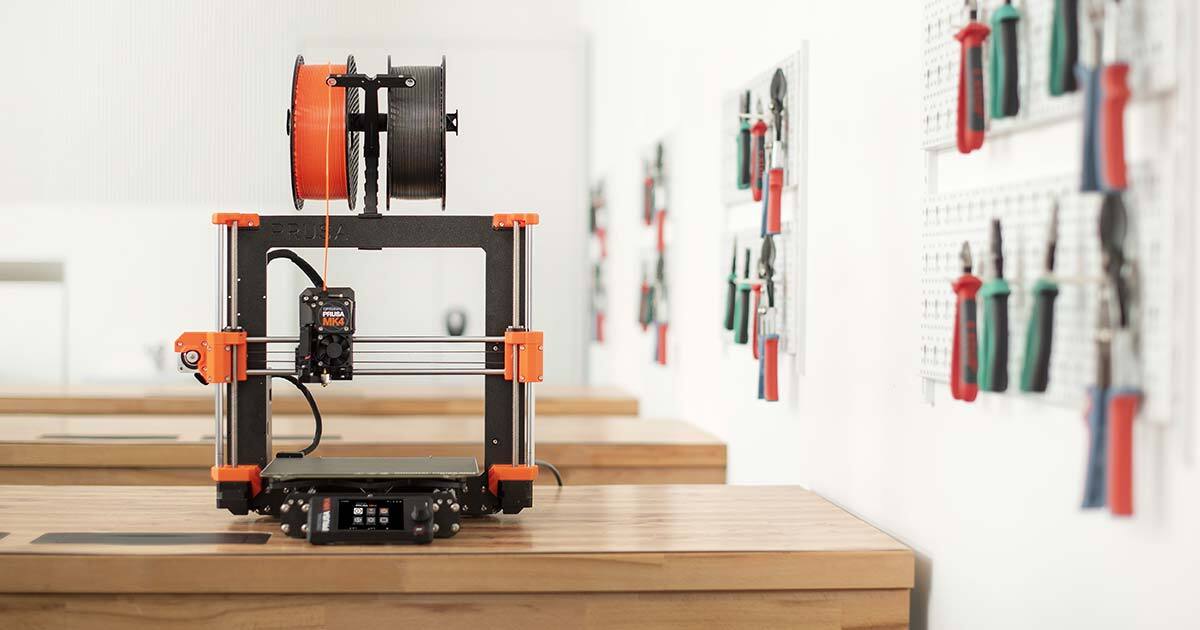
An XDA writer this month described the failed articulated dragon that finally taught them to care about first layers, adhesion, and slicer settings, and it is a story most 3D printer owners recognize. Benchies print fine on defaults. A dragon with dozens of moving joints does not. The slicer is where most of those fixes live, and the right one for a printer changes what is worth trying next. We tested seven 3D print slicers across Windows, macOS, and Linux against the same set of stubborn models, focusing on which of them made the second attempt actually work.
What to look for in a 3D print slicer
Printer profile coverage decides how long the first afternoon takes. A slicer that ships with a profile for the specific printer, filament, and nozzle size prints something usable inside an hour. A slicer that expects the profile to be built by hand takes a weekend of tuning before it prints as well as a default profile in a rival tool.
First-layer control is what separates a slicer that prints failed dragons from one that prints working ones. Adjustable initial layer height, flow, speed, and adhesion helpers such as brims, rafts, and skirts turn out to matter as much as any other setting for models with tricky footprints. The best picks expose these controls without hiding them behind menus.
Support strategy matters for anything with overhangs. Tree supports, painted supports, adaptive layer heights, and per-object printer settings are what separate a Benchy machine from a workhorse. Ironing, seam control, and pressure advance calibration each save specific classes of print, and the best slicers ship the calibration prints themselves.
Quick comparison
| App | Best for | Platforms | Free plan | Starting price | Rating |
|---|---|---|---|---|---|
| PrusaSlicer | Reliable defaults, wide printer coverage | Windows, macOS, Linux | Yes | Free | 4.8 |
| OrcaSlicer | Community-maintained modern fork | Windows, macOS, Linux | Yes | Free | 4.8 |
| Bambu Studio | Best pair with Bambu printers | Windows, macOS, Linux | Yes | Free | 4.7 |
| UltiMaker Cura | Broadest printer profile library | Windows, macOS, Linux | Yes | Free | 4.6 |
| SuperSlicer | Deep tuning for advanced users | Windows, macOS, Linux | Yes | Free | 4.5 |
| IdeaMaker | Raise3D-focused with strong supports | Windows, macOS, Linux | Yes | Free | 4.4 |
| Kiri:Moto | Browser-based slicer for chrome-only setups | Web | Yes | Free | 4.3 |
1. PrusaSlicer, the reliable default for almost any printer
PrusaSlicer is the default answer for a reason. Printer profiles cover most modern FDM machines, filament profiles are curated by Prusa and by the community, and the calibration prints for flow, temperature, and pressure advance ship inside the app. The default settings print a working part on the first try more often than any other slicer we tested.
Beyond defaults, PrusaSlicer exposes controls without hiding them behind advanced tabs. Tree supports, paint-on supports, variable layer height, and per-object settings are all one click away, and the sequential printing mode is the best on the list for batches of small parts. It runs identically on Windows, macOS, and Linux and is free and open source.
- Platform: Windows, macOS, Linux
- Highlights: reliable defaults, wide printer coverage, calibration prints, per-object settings
- Pricing: free and open source
- Ideal for: anyone new to 3D printing and most experienced users
- Download: prusa3d.com/prusaslicer
2. OrcaSlicer, the modern community-maintained fork
OrcaSlicer started as a fork of PrusaSlicer with features from Bambu Studio grafted in, and it has grown into the slicer many enthusiasts run daily. It keeps PrusaSlicer’s structure and adds features like the calibration wizard for pressure advance and max volumetric speed, a rich seam control system, and per-object flow tuning.
Update pace is fast, and the community around it produces printer and filament profiles quickly. For anyone happy running an open-source project that ships frequently, OrcaSlicer is a strong default and often a first stop for tuning a new printer.
- Platform: Windows, macOS, Linux
- Highlights: calibration wizards, per-object flow, community profiles, active development
- Pricing: free and open source
- Ideal for: enthusiasts who like tuning and frequent updates
- Download: orcaslicer.com
3. Bambu Studio, the best partner for Bambu Lab printers
Bambu Studio is Bambu Lab’s own slicer, and it earns a spot on any list because on Bambu printers it is the smoothest full experience. Print profiles include AMS filament calibration, per-color settings, and the Bambu-specific timelapse and telemetry features. It is a fork of PrusaSlicer, so the shape is familiar.
Away from Bambu hardware it still works as a general FDM slicer, though the tuning is Bambu-first. It runs on Windows, macOS, and Linux and is free to use. For anyone who owns an X1 or a P1 or an A1, this is the slicer that ships the printer at its full performance.
- Platform: Windows, macOS, Linux
- Highlights: Bambu-specific integration, AMS calibration, telemetry, PrusaSlicer heritage
- Pricing: free
- Ideal for: Bambu Lab printer owners
- Download: bambulab.com/en/download/studio
4. UltiMaker Cura, the broadest printer profile library
Cura has the widest printer profile library of any slicer, which makes it the fastest option for setting up a niche or older printer. The interface has evolved over the last few versions, and the marketplace of plugins covers extras like post-processing scripts, cloud printing, and additional themes.
Cura is not the most tuned out of the box on newer FDM printers because it aims wide rather than deep, and it still uses profile-based tuning rather than the calibration-wizard model that OrcaSlicer popularized. For a workshop with an older or unusual printer, though, the profile catalog is the reason to keep it installed.
- Platform: Windows, macOS, Linux
- Highlights: huge printer catalog, plugin marketplace, cloud print support, cross-platform builds
- Pricing: free
- Ideal for: older or unusual printers where profile coverage is the bottleneck
- Download: ultimaker.com/software/ultimaker-cura
5. SuperSlicer, the deep-tuning fork for advanced users
SuperSlicer is another PrusaSlicer fork, aimed at users who want to tune every knob. It exposes more advanced settings, adds an ironing pattern selector, calibration prints for each parameter, and a preset system for common tuning workflows. Prints that need precise control, especially engineering parts, tend to come out better once the tuning pass is done.
The tradeoff is complexity. SuperSlicer is not the first slicer to install on a new printer, but it is a great second when the defaults from PrusaSlicer or Orca leave a specific problem on the table. Documentation has caught up in the last year, which helps.
- Platform: Windows, macOS, Linux
- Highlights: fine-grained control, calibration prints per parameter, preset workflows, active development
- Pricing: free and open source
- Ideal for: users chasing dimensional accuracy or surface finish
- Download: github.com/supermerill/SuperSlicer
6. IdeaMaker, the Raise3D-first slicer with strong supports
IdeaMaker is Raise3D’s slicer, and it ships with some of the best support strategies in the segment. Tree supports, hybrid supports, and per-region overrides make it a good pick for models with overhangs and undercuts. It runs on Windows, macOS, and Linux and is free to use.
Away from Raise3D printers it still handles most FDM machines through user-created profiles. The reason to reach for it is a specific model with tricky supports where PrusaSlicer or Orca’s defaults leave scars. IdeaMaker’s slicer preview is one of the clearest for reading support geometry before hitting print.
- Platform: Windows, macOS, Linux
- Highlights: strong support strategies, clear preview, group print support, Raise3D integration
- Pricing: free
- Ideal for: models with challenging overhangs and undercuts
- Download: raise3d.com/ideamaker
7. Kiri:Moto, the browser-based slicer worth knowing about
Kiri:Moto runs entirely in a browser and slices FDM, laser, and CNC toolpaths without installing anything. On a Chromebook or a locked-down work laptop it is the only slicer that runs at all, and the FDM support covers most common printers well enough for casual prints.
It is not the tool to reach for on a serious workflow, and it does not have the printer profile library of Cura or the defaults of PrusaSlicer. What it does have is zero-install access, and it works cleanly on any modern browser. For anyone borrowing a printer for an afternoon on a machine they cannot install software on, Kiri:Moto is the answer.
- Platform: Web
- Highlights: browser-based, FDM plus CNC plus laser, zero install, works on Chromebooks
- Pricing: free
- Ideal for: casual use on locked-down or borrowed machines
- Download: grid.space/kiri
How to pick the right one
The safe first install is PrusaSlicer. It prints usable parts on defaults for most printers, ships the calibration prints that fix the real problems, and stays out of the way. From there, most enthusiasts add OrcaSlicer as a daily driver because the calibration wizards are the best on any slicer today.
Bambu Studio is the pick for Bambu hardware because the printer, filament, and slicer are tuned to work as one system. Cura earns its place on unusual or older printers where the profile catalog closes the gap. SuperSlicer belongs on advanced setups chasing dimensional accuracy, and IdeaMaker is the specialist for models with hard supports. Kiri:Moto is the emergency backup on a machine that cannot install anything. The one thing not to do is install four slicers and keep switching, one primary and one backup is enough on any workbench.
FAQ
What is the best free 3D print slicer? PrusaSlicer is the safest first choice because it prints usable parts on default settings for most printers. OrcaSlicer is the close second and often the daily driver after a couple of prints.
Which slicer prints the best first layer? PrusaSlicer and OrcaSlicer share the top of this list because both expose initial layer height, speed, flow, and adhesion helpers cleanly, and both ship calibration prints for first-layer squish. The right settings matter more than the slicer choice.
Is OrcaSlicer better than PrusaSlicer? It depends on the workflow. Orca ships better calibration wizards and per-object flow control; PrusaSlicer ships more mature defaults and slightly better documentation. Both are excellent, and many enthusiasts keep both installed.
Which slicer works best with Bambu printers? Bambu Studio is tuned specifically for Bambu hardware and covers AMS calibration, telemetry, and printer-specific features. OrcaSlicer works well on Bambu printers too and adds more calibration tools, so many owners keep both installed.
Do these slicers run on macOS with Apple Silicon? Yes. PrusaSlicer, OrcaSlicer, Bambu Studio, Cura, SuperSlicer, and IdeaMaker all ship native or Rosetta-compatible builds for Apple Silicon. Kiri:Moto runs in the browser so architecture does not matter.
Can I slice without installing anything? Kiri:Moto runs entirely in a browser and slices FDM prints without an install. For serious workflows, PrusaSlicer or OrcaSlicer on a desktop still produces better results, but the browser option covers the borrowed-machine case.